
Know your board
Get started with ESP-MOSAICO
ESP-Mosaico is a development device for AIoT and embedded creation. Use it to explore conversational programming, screen graphics, skills, peripheral expansion, and complete embedded applications built from scratch.
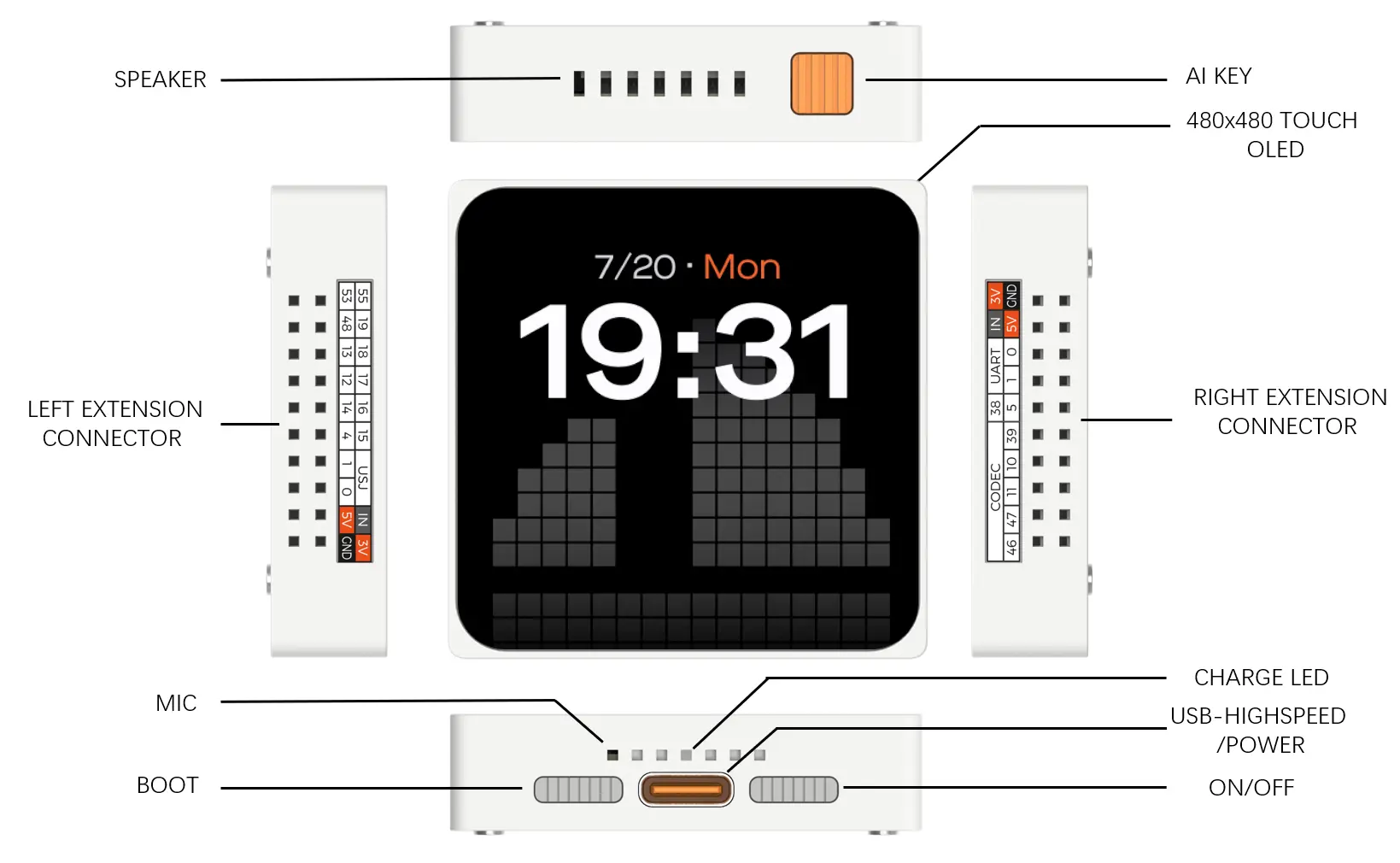
Button reference
| Button | Action | Function |
|---|---|---|
| Power | Short press | Toggle the device on or off. |
| BOOT | Hold BOOT while powering on | Enter download mode for flashing firmware or downloading programs. |
| AI KEY | Short press | Go back. |
| AI KEY | Long press | Open AI Create. |
Expansion I/O
| Interface | Description |
|---|---|
| IN | 5 V input for powering ESP-Mosaico from an external supply. |
| 5V | 5 V output, up to 100 mA. |
| 3V | 3.3 V output, up to 100 mA. |
| USJ | USB-Serial-JTAG; can be initialized as general-purpose GPIO. Pin order on the board: 3V, IN, DP (IO34), DN (IO33), IO15. |
| UART | UART; can be initialized as general-purpose GPIO. Pin order on the interface: 3V, IN, TX (IO58), RX (IO59), IO38. |
| CODEC | Can only be used as general-purpose I/O when the internal ES8311 is disabled. |
Expansion boards
ESP-Mosaico supports different peripherals through expansion boards. Check the slot and orientation before inserting one.
Camera expansion board: use the left-hand slot only, and align the connector in the correct direction.
Your first boot
Start up for the first time
On first use, follow the Guide on the device screen to complete the basic setup. Take a moment to learn the essential screen gestures as well.
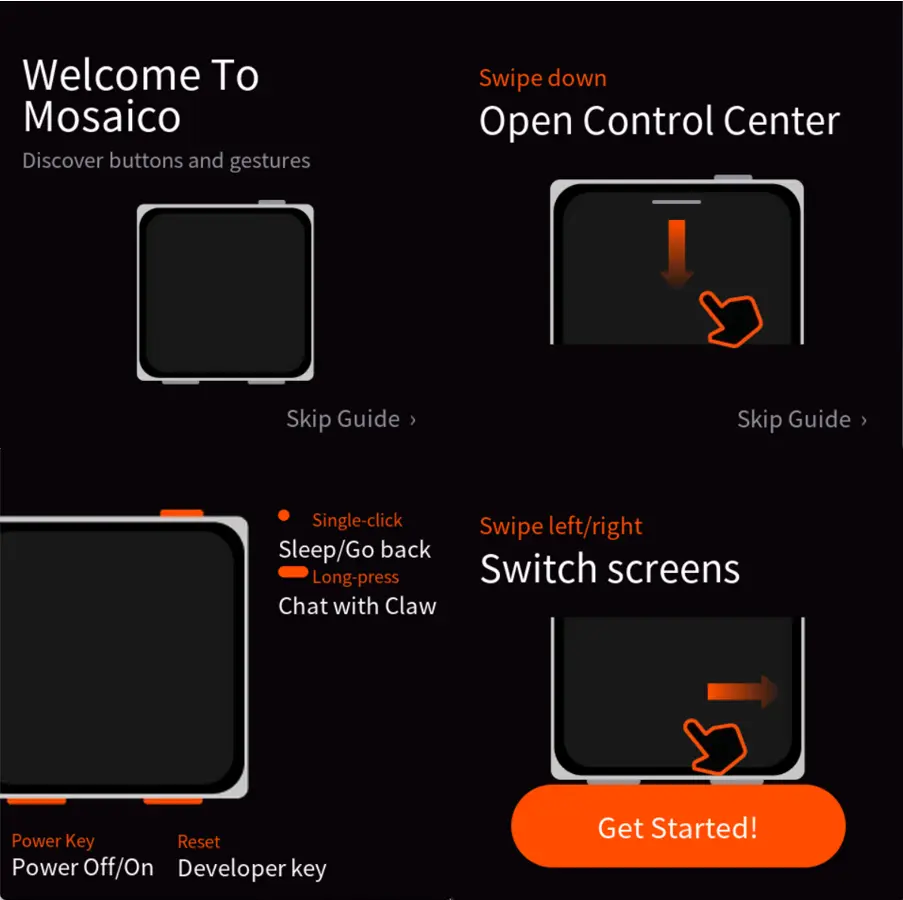
Can’t see the Guide? Check that the device is receiving power, then try short-pressing the Power button to turn it on again.
Configure the experience
Use the control panel
ESP-Mosaico provides a web-based control panel for configuring Wi-Fi, LLM, and other service parameters.
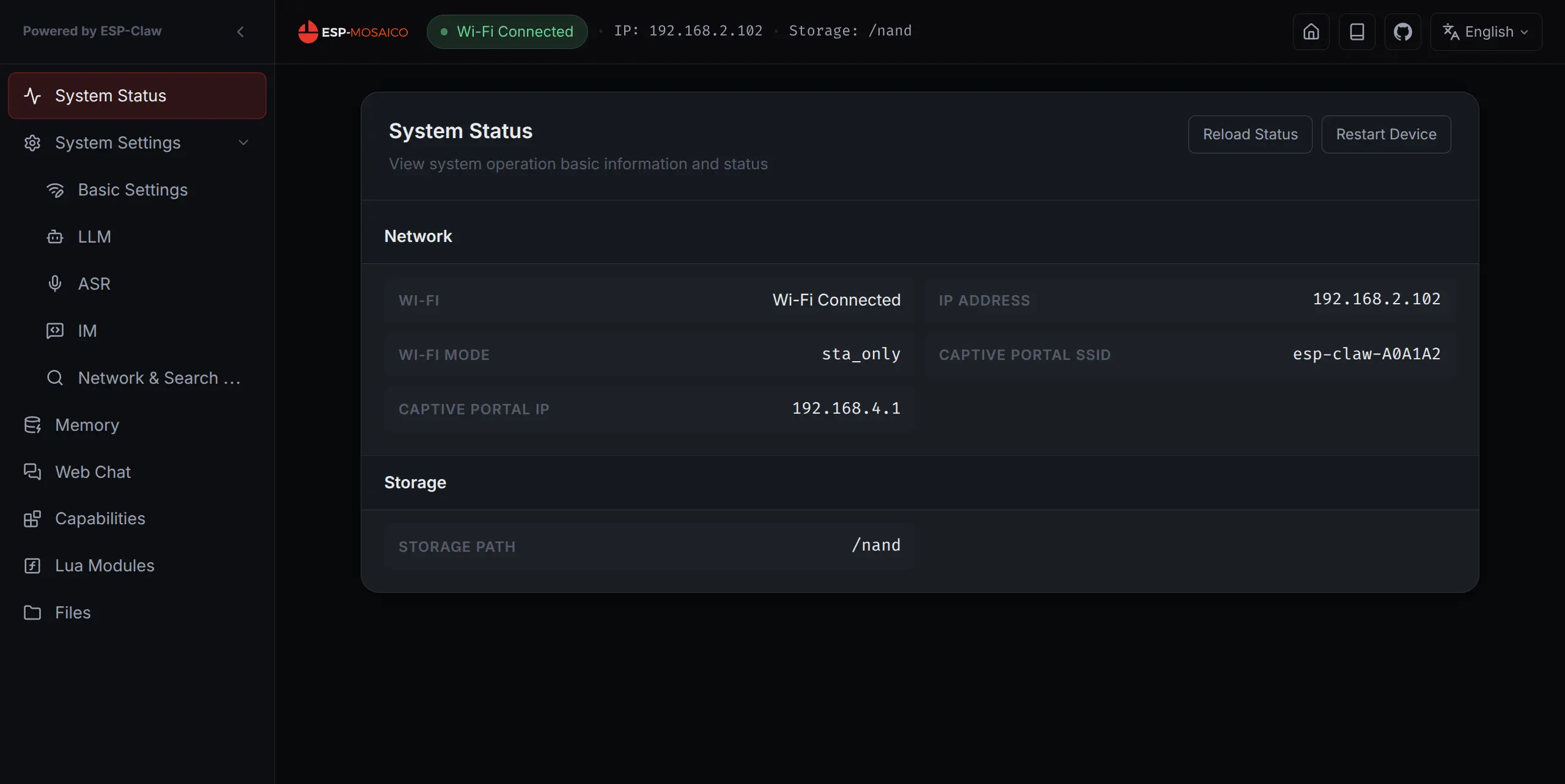
After the device connects to the network, use the address shown on the device screen or in the Guide to open the control panel. It is typically used to:
- View or change Wi-Fi settings
- Configure LLM services
- Configure ASR services
- Configure network API services
- View device status
- Adjust skills and Lua options
- Chat online
Restart after changes. Manually reboot the device after changing settings in the control panel so they take effect.
Factory settings include ASR and LLM keys for a quick first experience, including basic questions and simple programming. If the included quota runs out, or you want stronger coding results, set up your own model credentials in the control panel.
Talk to your hardware
Try ChatCoding
ChatCoding lets you experience the fun of embedded programming through natural language. Describe what you want ESP-Mosaico to do, and the Agent will generate and run the corresponding code.
Before you begin
- Wi-Fi has been configured.
- WeChat or another supported platform has been bound to the device.
- ASR and LLM services are available.
- The device screen is working normally.
Send text in WeChat
Open the WeChat conversation bound to your device and type a request directly.
Introduce yourself briefly.Remind me to drink water every 30 minutes.Use voice input in Claw
Open the Claw app from the home screen, press and hold the input field, and say what you want the device to do.
Claw’s six built-in skills
| Mode | Skill | Purpose | Example |
|---|---|---|---|
| Quick Ask | ai_create_quick | Answer one clear question quickly and directly. | “If every choice is determined by the past, does free will still exist?” |
| AI Create | skill_creator | Create or update device features, workflows, skills, or Lua automations. | “Draw a small rotating flower on the screen for 30 seconds.” |
| Install Skill | skills_lab_search | Search ESP-Claw Skills Lab for a skill suited to ESP-Mosaico and guide you through installation. | “Find me a weather skill.” |
| Remember | memory_ops | Save, find, update, or delete the device’s long-term memories. | “Remember that you are now a plant-care specialist for my home garden.” |
| Plan | plan_mode | Analyze a complex goal, check hardware and capability requirements, and produce an actionable plan. | “I want to turn ESP-Mosaico into a servo robot. Plan the fastest way to build it.” |
| Schedule | cap_scheduler | Create and manage one-time, recurring, or Cron-scheduled tasks. | “Turn on the expansion light board at 8 PM every evening.” |
Keep what you build
Manage skills in Work
Work stores the skills completed by the Agent. When ChatCoding or another workflow helps you create a feature, save it to Work so you can run it again or keep improving it later.
Build from an idea
Try VibeCoding
VibeCoding is designed for building your own ideas from scratch. On a PC, pair an AI coding agent with the ESP-Mosaico emulator, debugging tools, and a physical device to create more ambitious embedded applications.
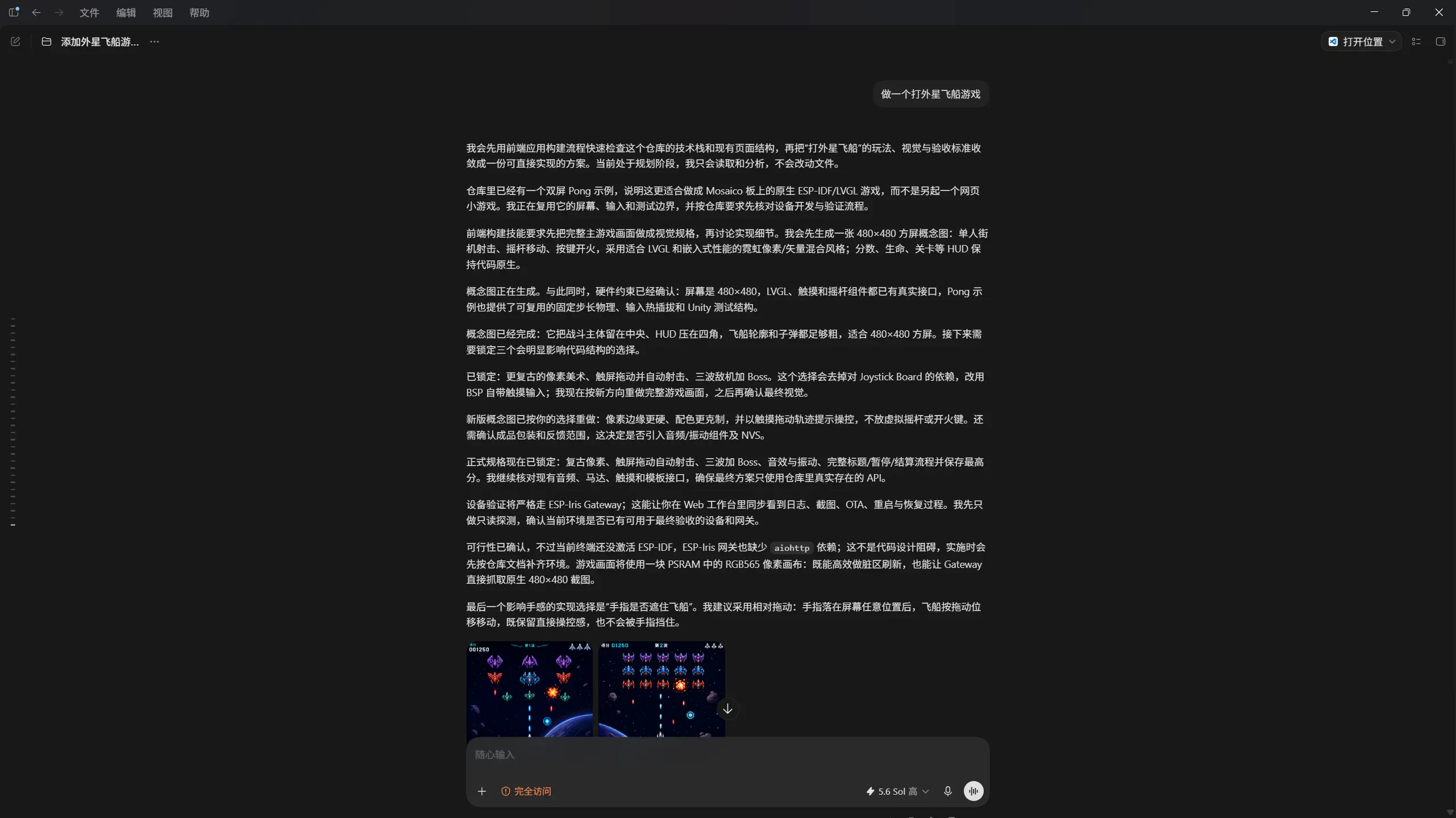
What you need
Prepare any AI coding agent on your PC, such as:
- Codex
- Claude Code
- OpenCode
- Trae
You will also need a USB cable that supports data transfer, and a connection between ESP-Mosaico and your computer.
Enter download mode
With the device powered off, connect ESP-Mosaico to your PC with the USB cable. Hold the BOOT button, then short-press the Power button to turn it on. The device enters download mode for flashing firmware or downloading programs.
Give the Agent a task
Try a prompt like this:
Download the code for this project.

Set up the environment and build a Snake game.
Include the project repository URL whenever possible so the Agent can fetch the code and configure the environment automatically.
Iterate on the result
After the Agent finishes the first version, use what you see on the device or emulator to guide the next change:
The snake moves too quickly. Slow it down and add a pause function.Add a start screen and a game-over screen.Let the AI KEY return to the main menu.Tips
- Use Plan Mode. VibeCoding depends on shared understanding. When a request is hard to express all at once, ask the Agent’s Plan Mode to restate its understanding first, then correct it before implementation.
- Prototype UI in the ESP-GSP emulator. Validate layout, interaction logic, and visual results in the emulator before flashing to the physical device.
- Use debugging tools for multimodal tests. The tools in this repository can capture the screen and support interactive testing.
Troubleshooting
Frequently asked questions
What if the device will not turn on?
Check the battery level or USB power. The Power button uses a short press to toggle the device; holding it does not turn the device on.
How do I enter download mode?
With the device powered off, connect it to a PC using a USB data cable. Hold BOOT, then short-press the Power button to turn it on.
What if Wi-Fi setup fails?
Check the network name and password, and confirm that the router signal is stable. If the problem persists, restore factory settings and configure the device again.
Why did WeChat QR binding fail?
Confirm that the device is online. WeChat currently supports binding only one Claw device; binding a ClawBot will take over the previous device binding.
Why did my control-panel settings not take effect?
Restart the device manually after changing settings in the control panel.
Why are the LLM or voice features not working well?
Confirm that the device is online and that the LLM and ASR settings in the control panel are available. Factory keys are for a quick trial; configure your own model credentials when the included quota runs out.
Why is there no camera image?
Make sure the camera expansion board is in the left-hand slot and inserted in the correct direction.
What if the Agent’s program is not what I expected?
Describe the problem and next change to the Agent. Give one specific piece of feedback at a time—for example, speed, button behavior, screen layout, or interaction.
A shared vocabulary
Glossary
| Term | Meaning |
|---|---|
| ESP-Mosaico | A development device for AIoT and embedded creation. |
| ESP-Claw | The on-device Agent running in ESP-Mosaico’s factory firmware. |
| Guide | The first-startup flow for configuring Wi-Fi and WeChat. |
| ChatCoding | An experience where you describe a request by chat or voice and the Agent generates and runs code for you. |
| VibeCoding | A development approach that uses an AI coding agent to build a creative project from scratch. |
| Work | The area where completed Agent skills are stored. |
| Agent | An AI coding agent that understands requests, generates code, calls tools, and helps complete tasks. |
| ASR | Automatic speech recognition, used to convert speech to text. |
| LLM | Large language model, used to understand requests, generate answers, or write code. |
| Download mode | The device mode used to flash firmware or download programs. |
| ESP-GSP emulator | A PC tool for quickly validating ESP-Mosaico UI prototypes and interaction. |
Before you build
Safety and care
- Power off the device before connecting or removing an expansion board.
- Use the camera expansion board in the left-hand slot only.
- Check the orientation before inserting an expansion board to avoid reverse insertion.
- When connecting to a PC over USB, make sure the cable supports data transfer.
- Avoid disconnecting power or USB during flashing or program downloads.
- Keep metal objects away from exposed connectors to prevent short circuits.
- If the device becomes unusually hot, disconnect power immediately and stop using it.