
Talk to your hardware
Try ChatCoding
ChatCoding lets you experience the fun of embedded programming through natural language. Describe what you want ESP-Mosaico to do, and the Agent will generate and run the corresponding code.
- Describe your idea
Use WeChat text or Claw voice input
- Generate and run
The Agent writes and runs code on your device
- Refine the result
Observe the result and ask for the next change
Follow the sections below to complete first-time setup, configure the control panel, begin a conversation, and manage skills in Work. You can also jump to any section from the contents.
Your first boot
Start up for the first time
On first use, follow the Guide on the device screen to complete the basic setup. Take a moment to learn the essential screen gestures as well.
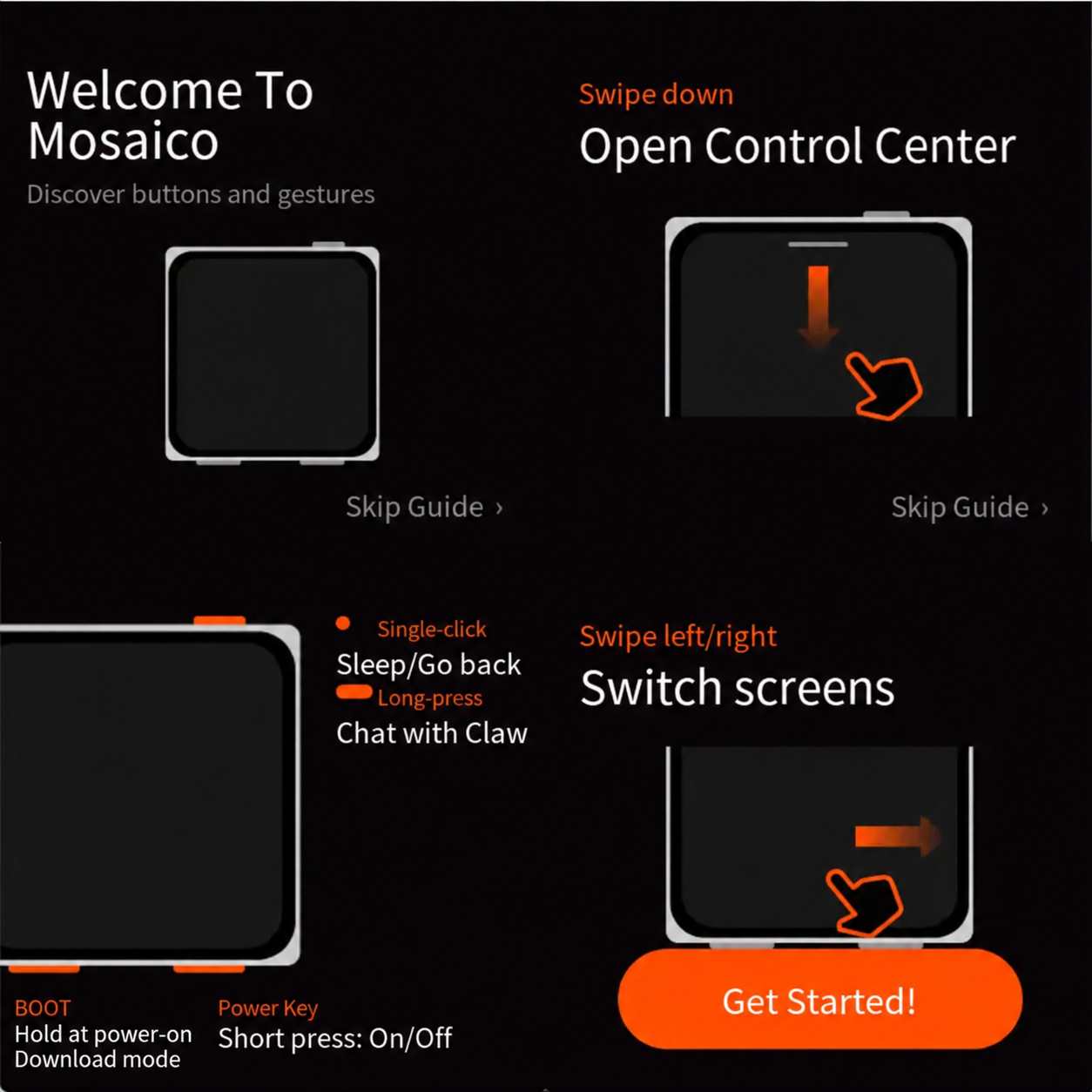
Can’t see the Guide? Check that ESP-Mosaico is receiving power, then try short-pressing the Power button to restart it.
Configure the experience
Use the control panel
ESP-Mosaico provides a web-based control panel for configuring Wi-Fi, LLM, and other service parameters.
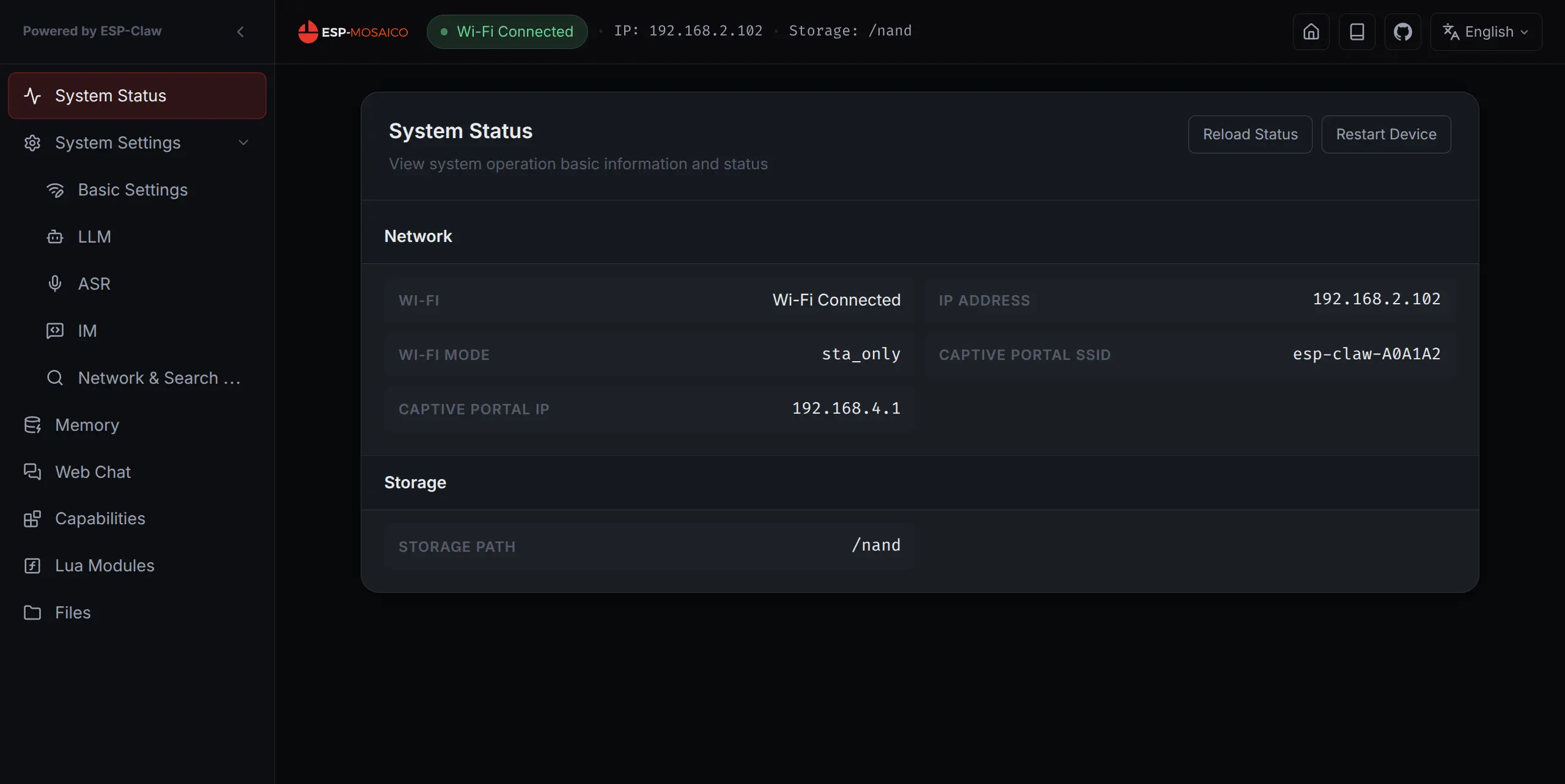
After ESP-Mosaico connects to the network, open the control panel using the address shown on the screen or in the Guide. The control panel is typically used to:
- View or change Wi-Fi settings
- Configure LLM services
- Configure ASR services
- Configure network API services
- View device status
- Adjust skills and Lua options
- Chat online
Restart after changes. Manually restart ESP-Mosaico after changing settings in the control panel so they take effect.
Factory settings include ASR and LLM keys for a quick first experience, including basic questions and simple programming. If the included quota runs out, or you want stronger coding results, set up your own model credentials in the control panel.
Start a conversation
Before you begin
- Wi-Fi has been configured.
- WeChat or another supported platform has been bound to the device.
- ASR and LLM services are available.
- The device screen is working normally.
Send text in WeChat
Open the WeChat conversation bound to ESP-Mosaico and type a request directly.
Introduce yourself briefly.Remind me to drink water every 30 minutes.Use voice input in Claw
Open the Claw app from the home screen, press and hold the input field, and say what you want it to do.
Claw’s six built-in skills
| Mode | Skill | Purpose | Example |
|---|---|---|---|
| Quick Ask | ai_create_quick | Answer one clear question quickly and directly. | “If every choice is determined by the past, does free will still exist?” |
| AI Create | skill_creator | Create or update device features, workflows, skills, or Lua automations. | “Draw a small rotating flower on the screen for 30 seconds.” |
| Install Skill | skills_lab_search | Search ESP-Claw Skills Lab for a skill suited to ESP-Mosaico and guide you through installation. | “Find me a weather skill.” |
| Remember | memory_ops | Save, find, update, or delete the device’s long-term memories. | “Remember that you are now a plant-care specialist for my home garden.” |
| Plan | plan_mode | Analyze a complex goal, check hardware and capability requirements, and produce an actionable plan. | “I want to turn ESP-Mosaico into a servo robot. Plan the fastest way to build it.” |
| Schedule | cap_scheduler | Create and manage one-time, recurring, or Cron-scheduled tasks. | “Turn on the expansion light board at 8 PM every evening.” |
Keep what you build
Manage skills in Work
Work stores the skills completed by the Agent. When ChatCoding or another workflow helps you create a feature, save it to Work so you can run it again or keep improving it later.
- Save a skill
Keep a completed capability in Work
- Run it again
Open and reuse your saved skill
- Keep improving
Refine the skill in later conversations